
Securely connect DBS bank accounts with Info-Tech and automate daily transaction statement syncing, reducing manual work, improving reconciliation accuracy, and keeping financial records up to date.
Automated Daily Bank Feeds
Automatically retrieve DBS bank transaction statements into Info-Tech Accounting daily without manual downloads or uploads.
Reduce Manual Data Entry
Cut down repetitive administrative work by eliminating manual statement handling and transaction updates.
Faster Financial Reconciliation
Keep transaction records updated in near real-time so finance teams can reconcile accounts more efficiently.
Secure Bank Authentication
Securely connect DBS bank accounts through authenticated bank authorization and direct API integration.
Multiple Account Linking
Link and manage multiple authorized DBS bank accounts within a single Info-Tech Accounting environment.
Flexible Feed Management
Enable, disable, archive, restore, or re-link Auto Feed connections anytime without losing historical transaction records.
Add ‘DBS bank’ Auto Feed New Account
Step 1
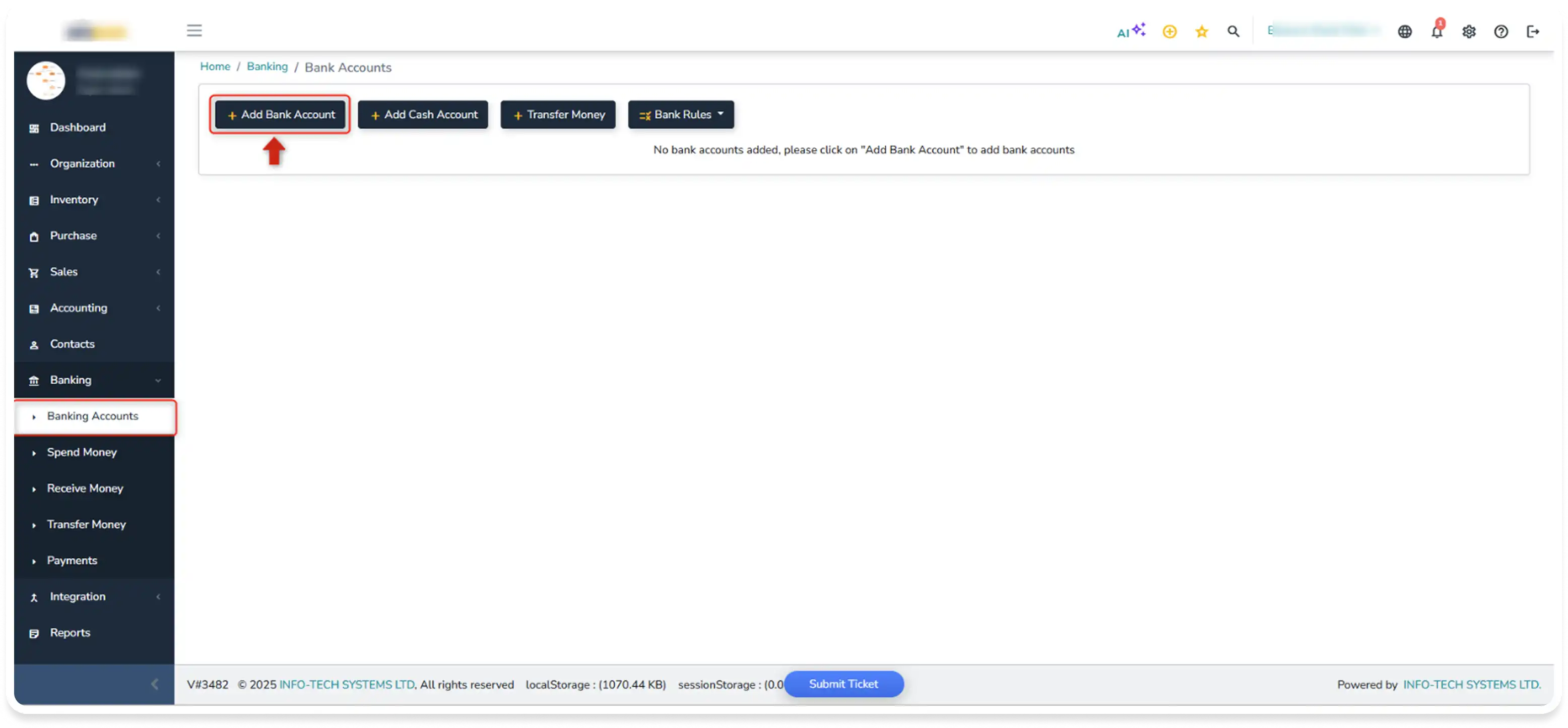
Navigate to Banking > Banking Accounts and Click on ‘Add Bank Account’ button
Step 2
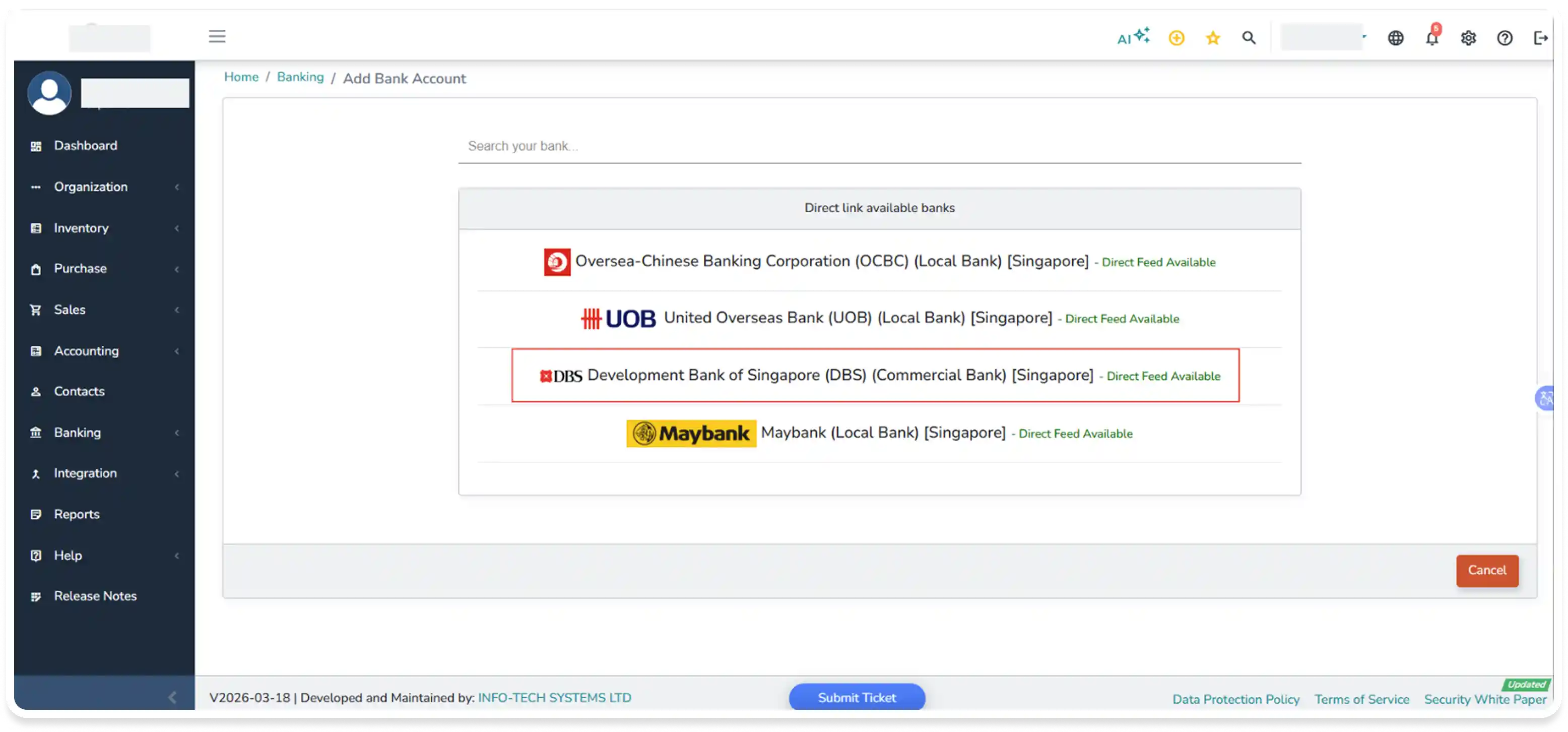
Select ‘Development Bank of Singapore (DBS) [Singapore]’ option from the available bank list.
Note: The user is able to search the preferred bank using ‘Search’ option.
Step 3
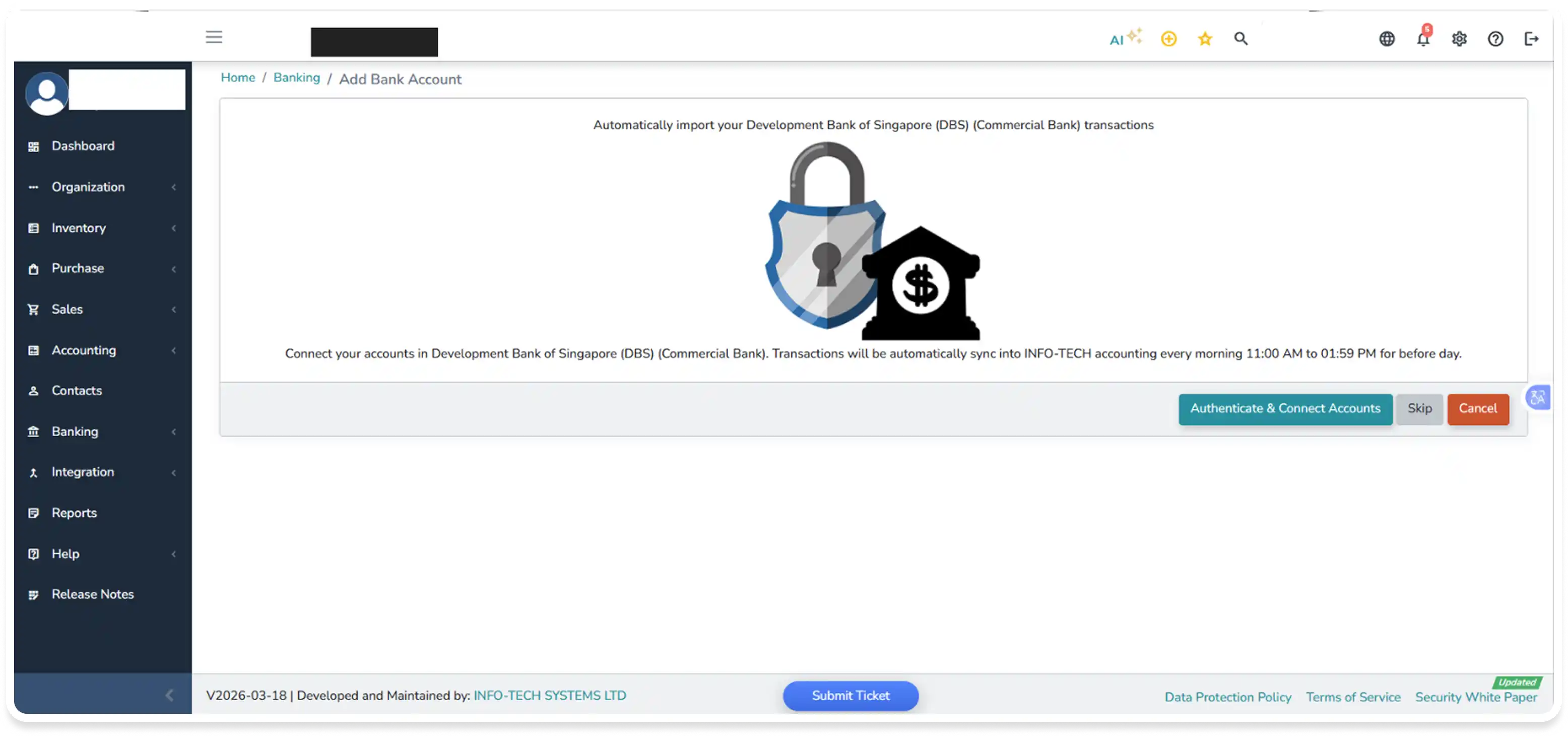
Click on ‘Authenticate & Connect Accounts’
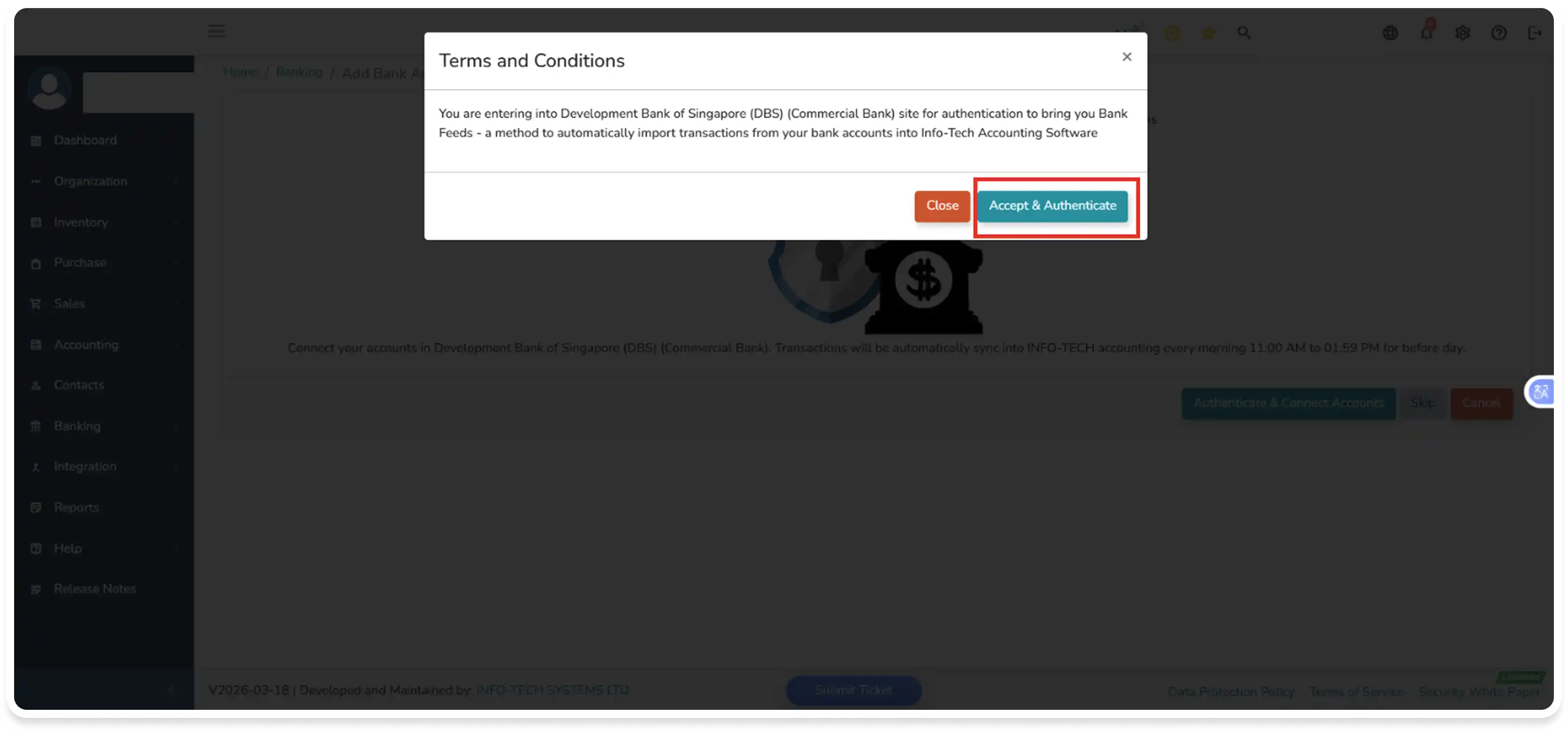
Step 4
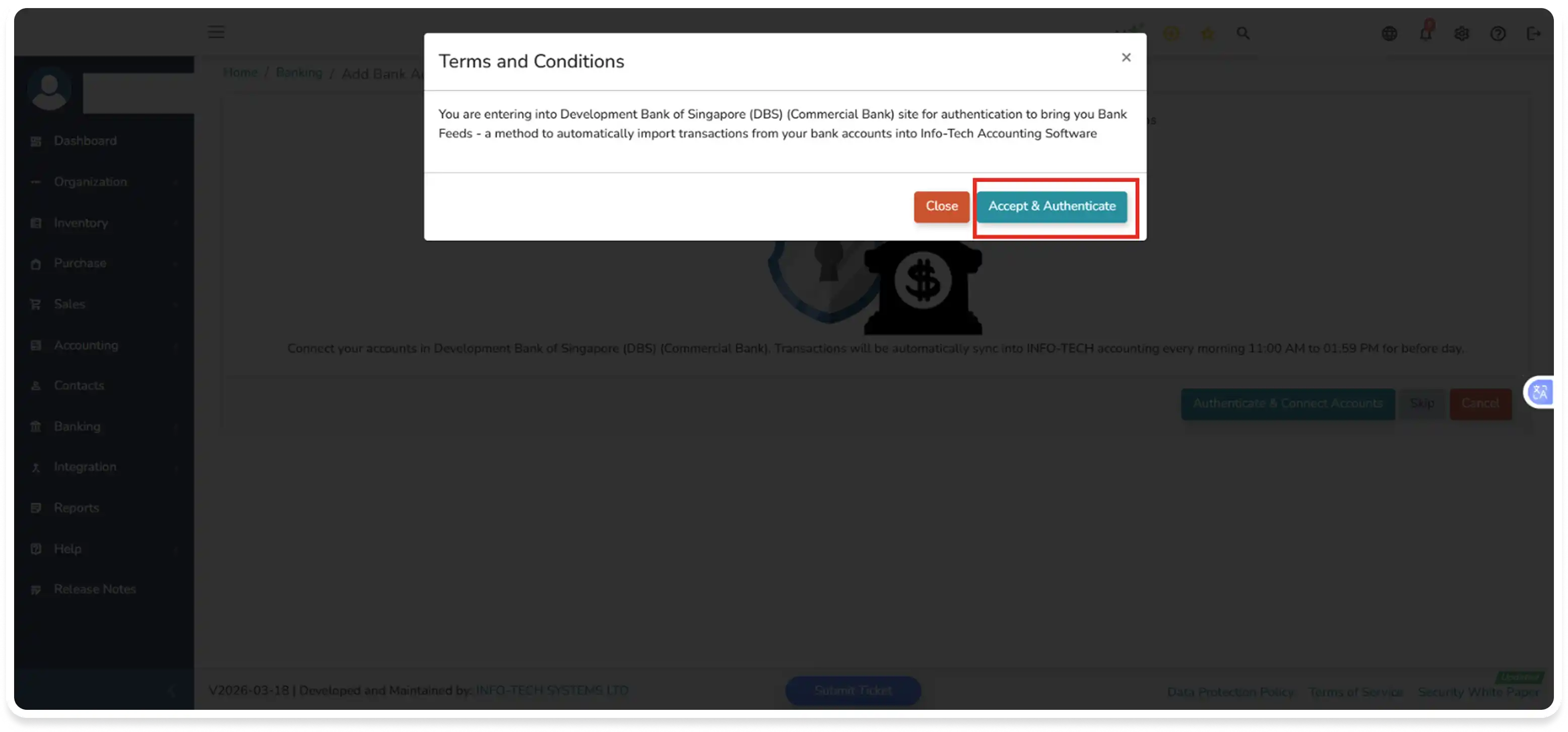
Click on the ‘Accept & Authenticate’ button to proceed further and add the bank account.
Step 5
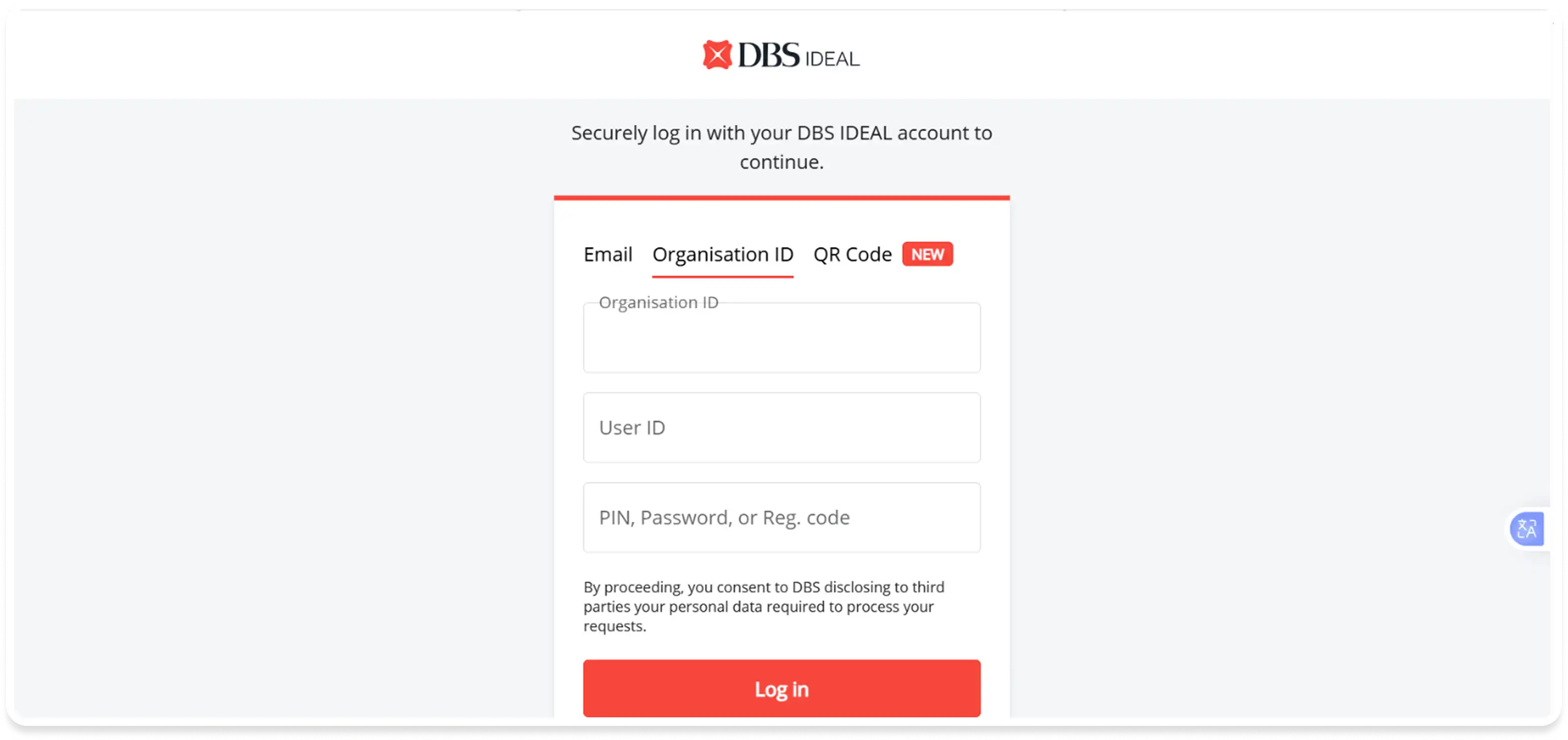
The page will get redirected to ‘DBS bank’ website directly, and the user must login with the valid credentials with any of the appropriate methods provided by DBS and complete the log in step as directed by the system.

Step 6
Once authentication is successful, you will be redirected to the Info-Tech page, where the accounts will be listed in the Info-Tech Accounting system.
Step 7
Select the preferred accounts to be linked and click on the ‘Proceed’ button to proceed adding the bank account in Info-Tech Accounting system. Upon completion, you will be redirected to the Info-Tech Accounting banking page, where the selected account will be displayed.
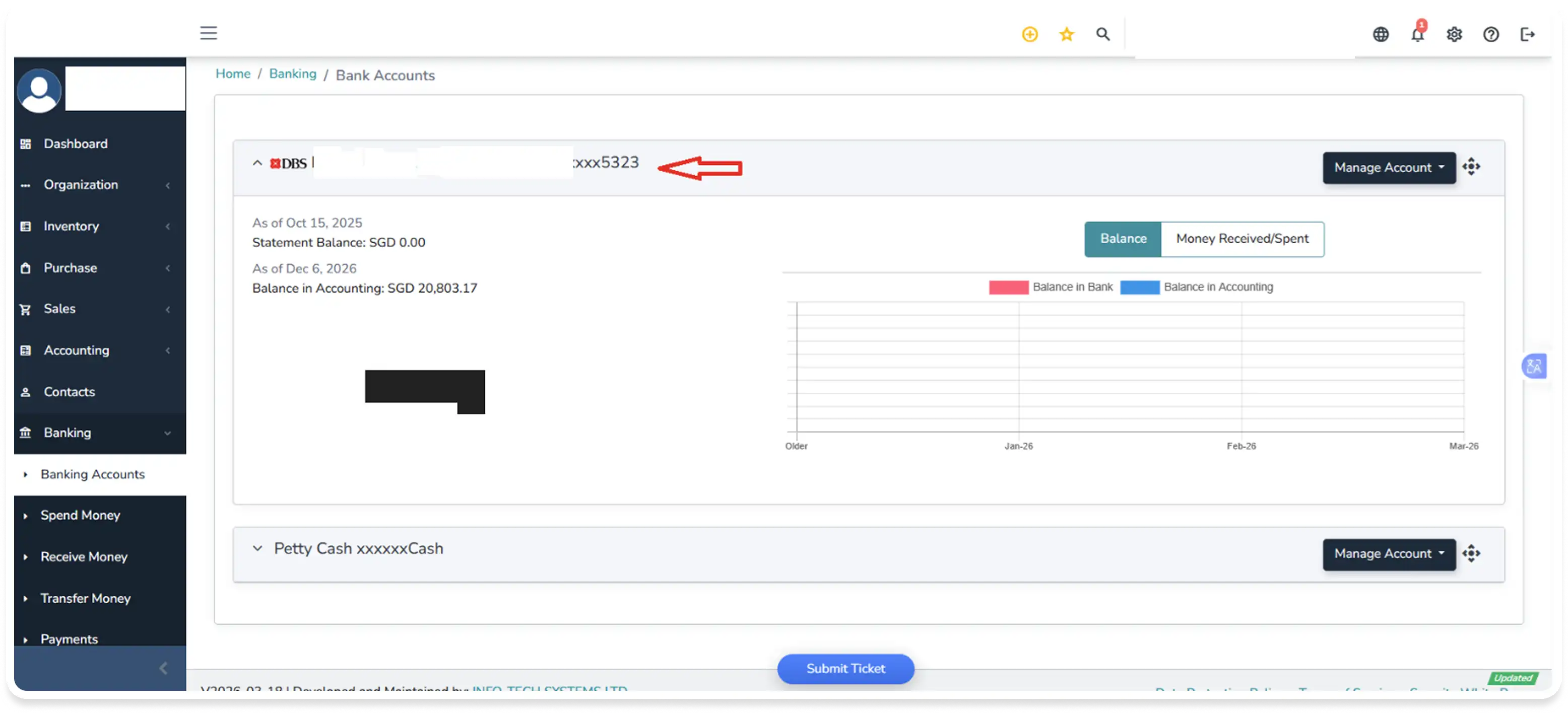
Disable ‘Auto Feed’ option from DBS bank Accounts
Step 1
Check whether the DBS bank account already enabled ‘Auto Feed’ option.
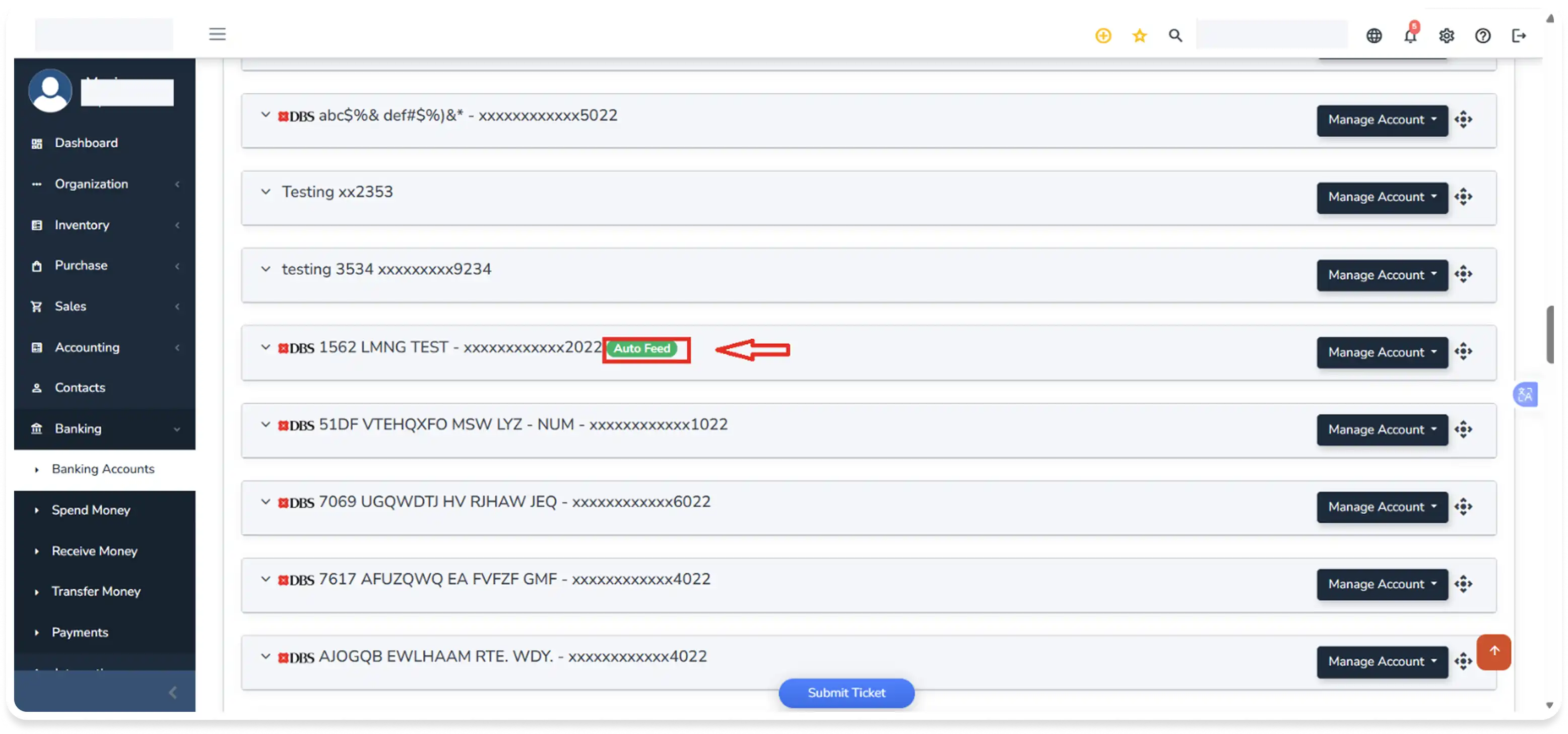
Step 2
Navigate to Bank Accounts > Manage Account, click on ‘Disable Auto Feed’ option to disable the Auto Feed feature.
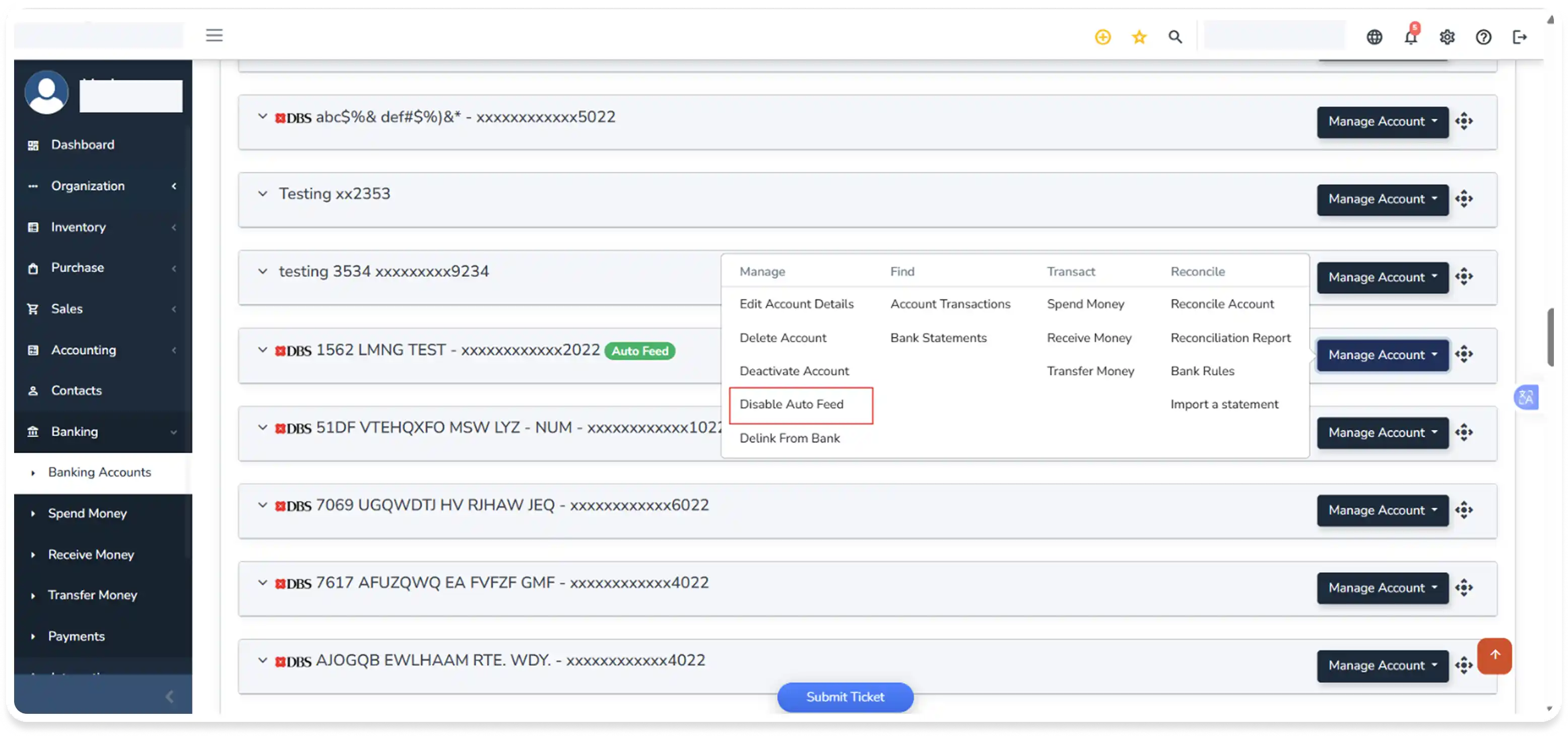
Step 3
DBS bank Account ‘Auto Feed’ option will get disabled.
Note: Disabling the Auto Feed function only stops the scheduled daily transaction statement retrieval. The connection between the bank and the Info-Tech system remains active, enabling users to resume automatic fetching at any time without repeating the initial authentication process.
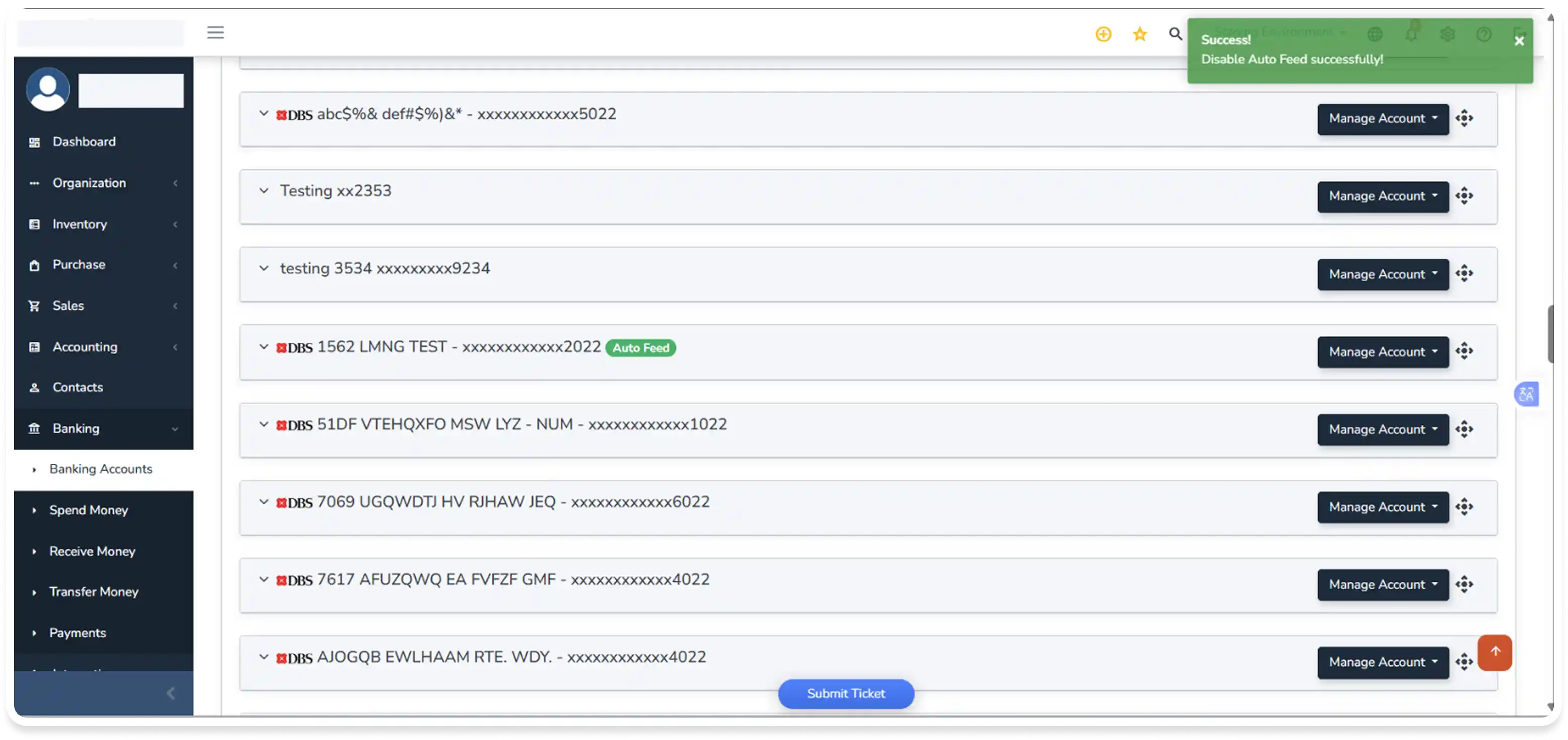
Link Account or Enable Auto Feed/Direct Feed option
Step 1
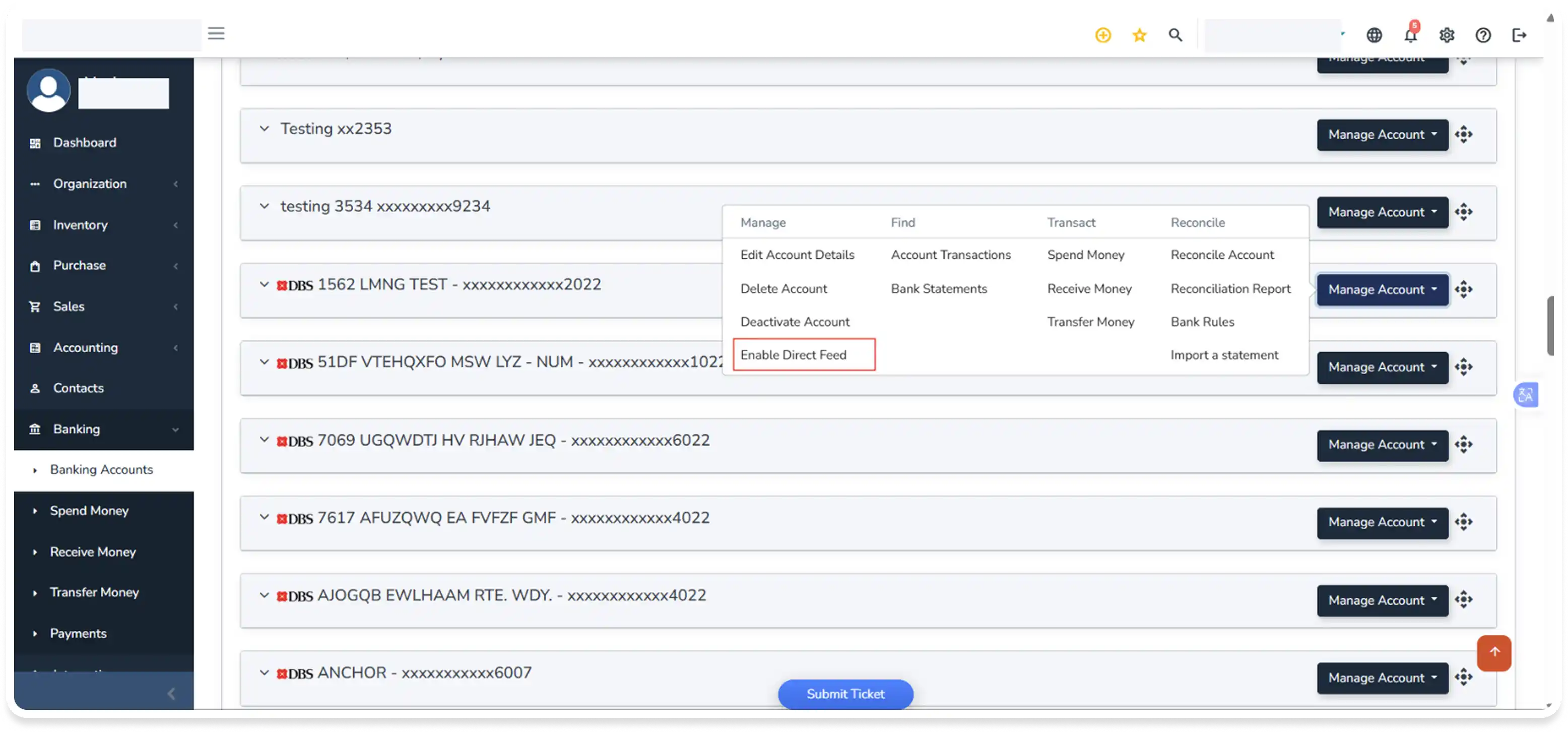
Navigate to Bank Accounts > Manage Account > Enable Direct Feed.
Step 2
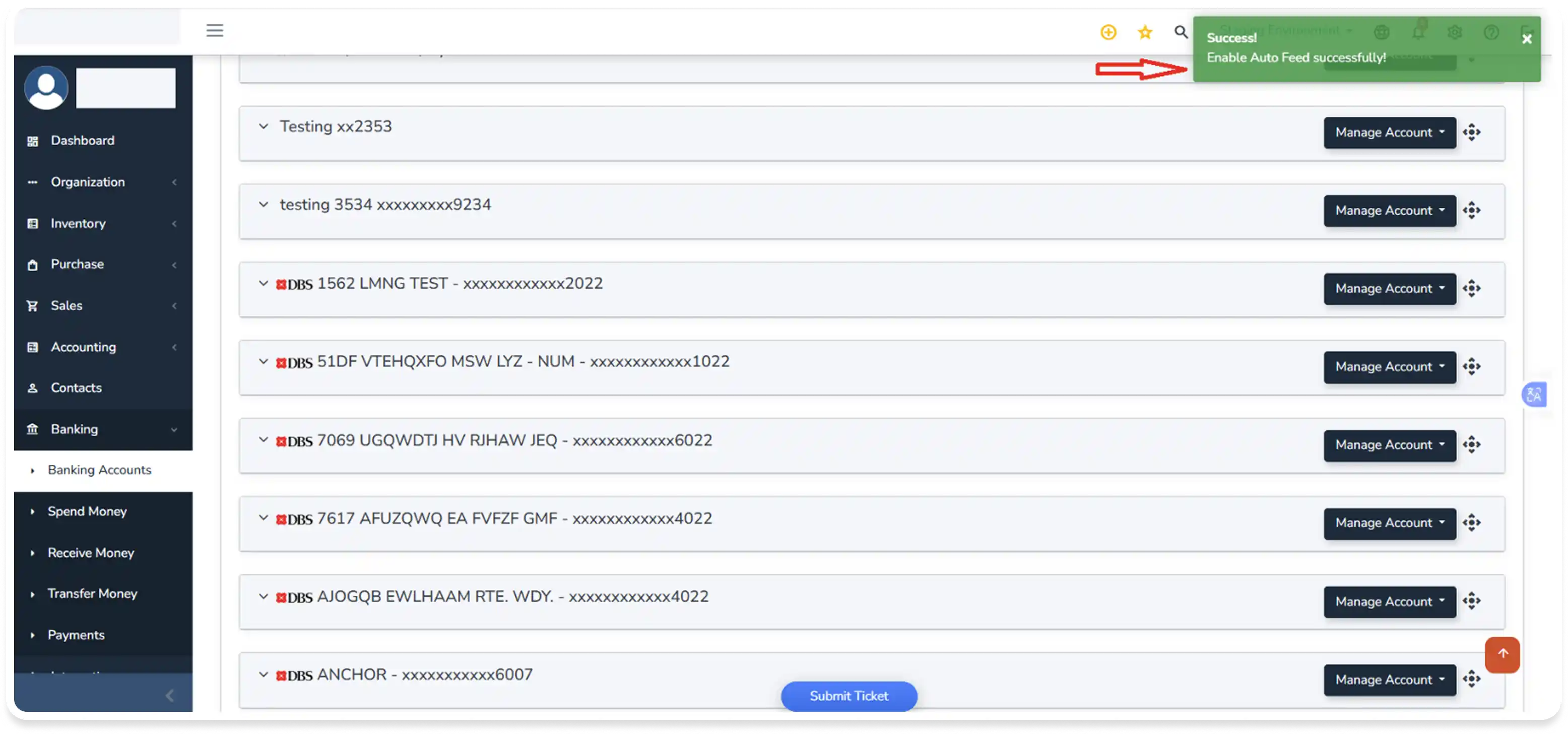
Click on the ‘Enable Direct Feed’ option to enable automatic retrieval of bank statements for that specific account.
Enable Auto Feed for existing DBS bank Account
Step 1
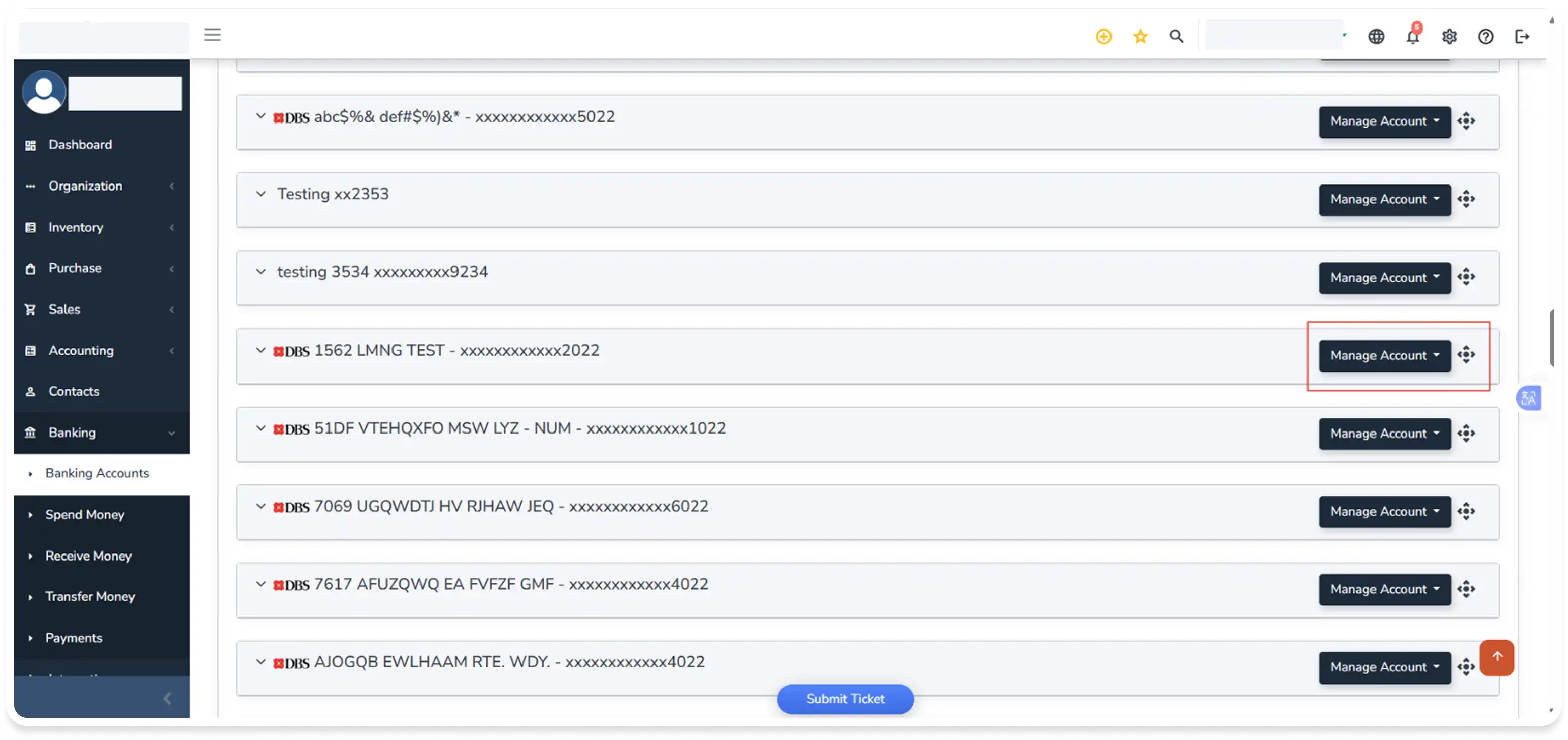
Navigate to Banking > Banking Accounts > Manage Account (Existing DBS Bank account).
Step 2
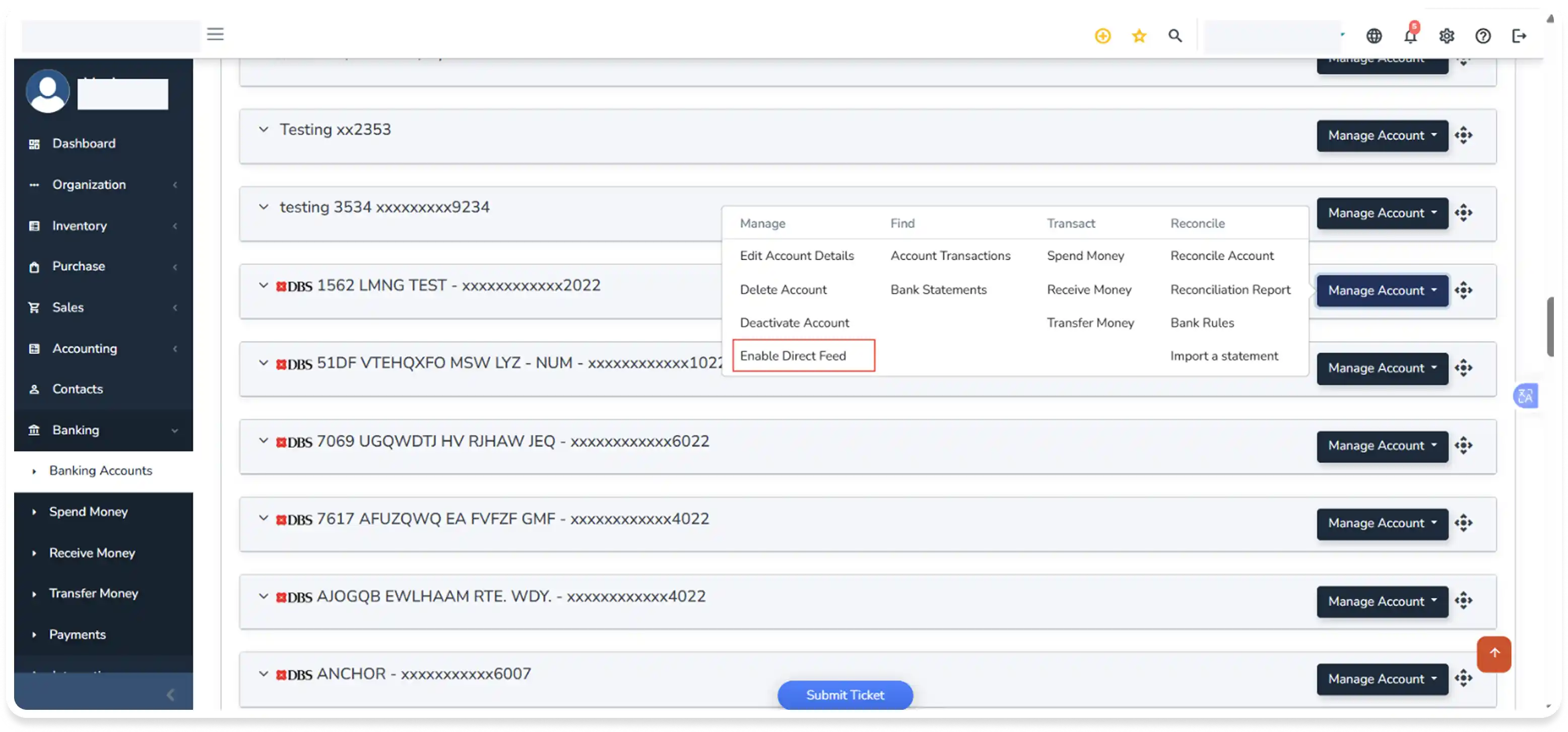
Click on ‘Enable Direct Feed’ option to enable DBS bank for existing accounts.
Step 3
Click on ‘Authenticate & Connect Accounts’.
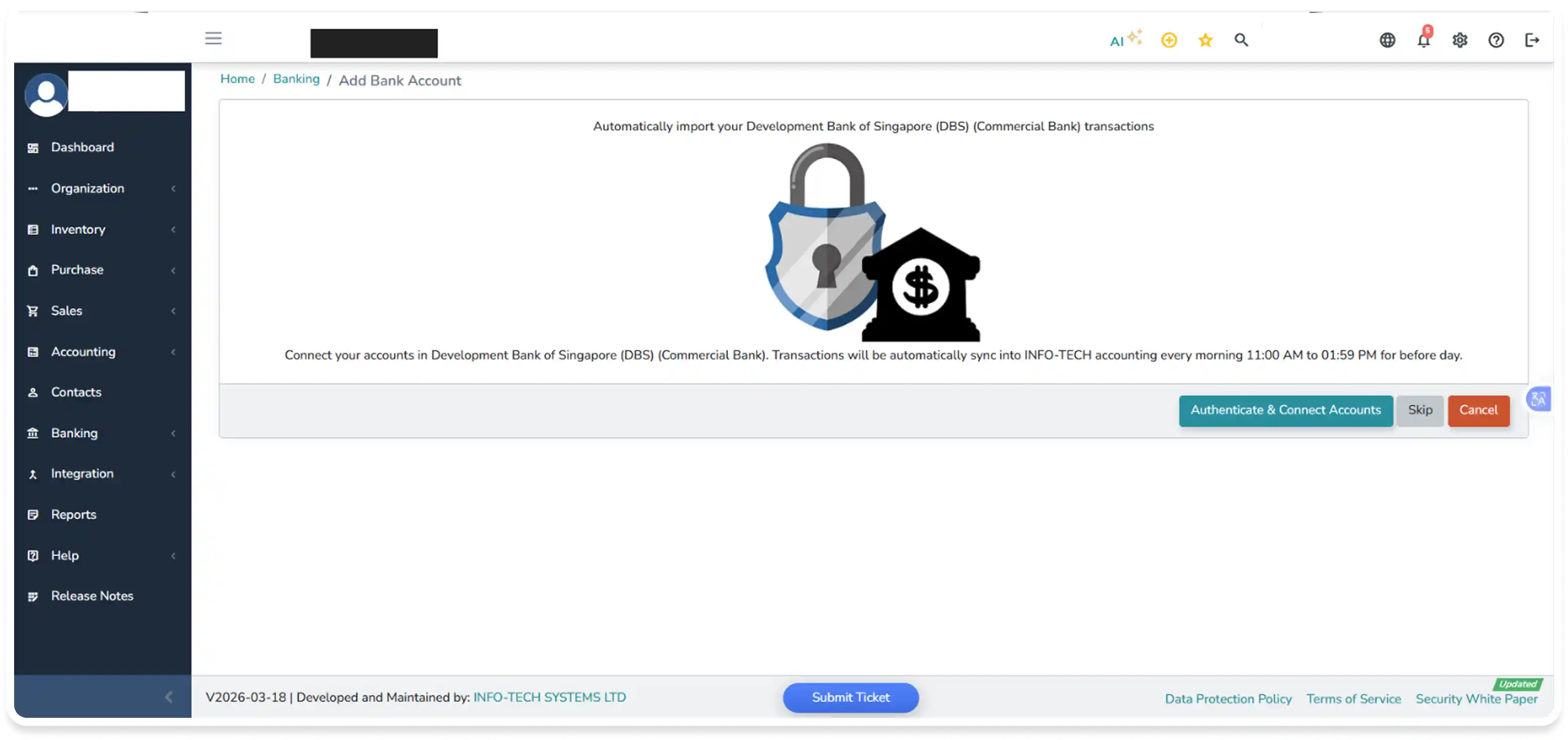
Step 4
Click on the ‘Accept & Authenticate’ button to proceed further and add the bank account.
Step 5
The page will get redirected to ‘DBS bank’ website directly, and the user must login with the valid credentials with any of the appropriate methods provided by DBS and complete the log in step as directed by the system.
Step 6
Once authentication is successful, you will be redirected to the Info-Tech page, where the accounts will be listed in the Info-Tech accounting system.
Step 7
Select the preferred accounts to be linked and click on the ‘Proceed’ button to proceed adding the bank account in Info-Tech accounting system.
Note: To link to a DBS bank account that is already recorded in the system, you must ensure the ‘Account Number’ matches your bank records exactly. Precise entry is required to successfully authorize the data sync between DBS bank and the Info-Tech portal. If the account number does not match the pre-recorded entry, the system will create a new bank account instead of enabling the Auto Feed for the existing one.
De-link from Bank
Step 1
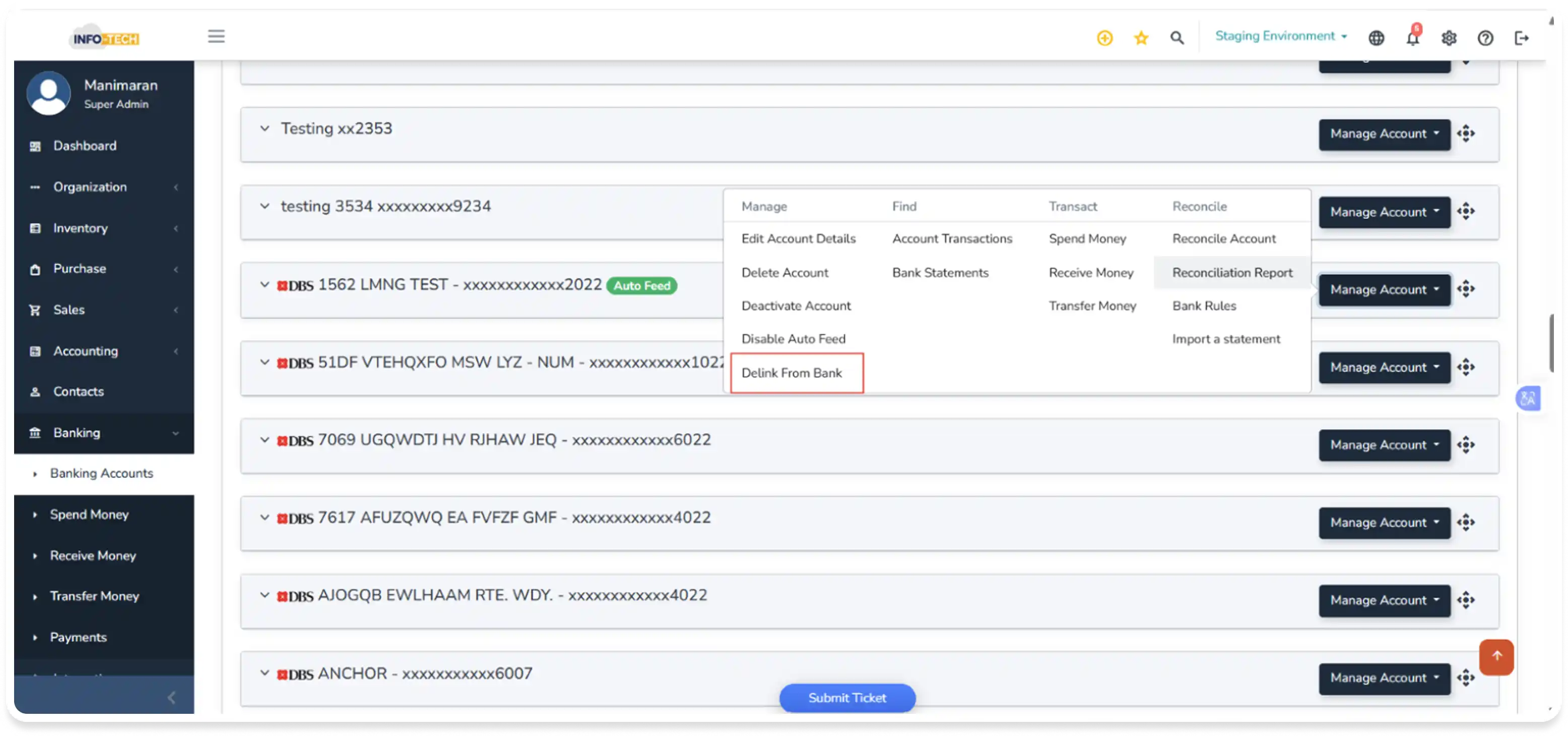
Navigate to Bank Accounts > Banking > Manage Account and select ‘ Delink from Bank’ to disconnect your account successfully.
Note:
- Delinking from the bank terminates the connection between DBS Bank and the Info-Tech system. Delinking a DBS account will also interrupt the connection for the selected account and any other DBS accounts linked for Auto Feed.
- Delinking an account will immediately stop the 'Auto Feed' service for all the DBS bank accounts imported. No new transactions will be fetched until the account is re-linked.
- The user needs to “Enable Direct Feed” In order to re-link the account.
Deactivate a DBS bank Account
Step 1
Navigate to Banking > Banking Accounts > Manage Account.
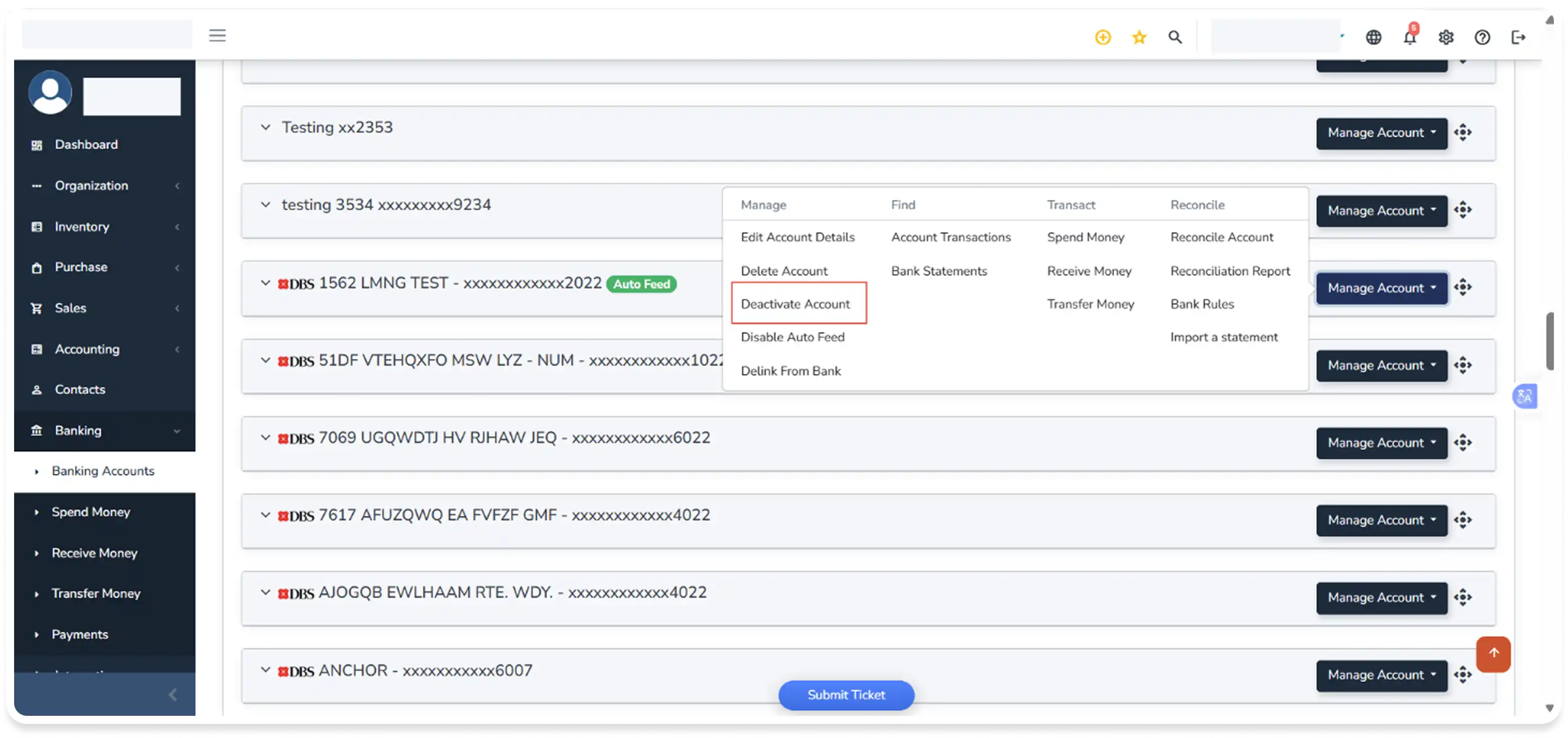
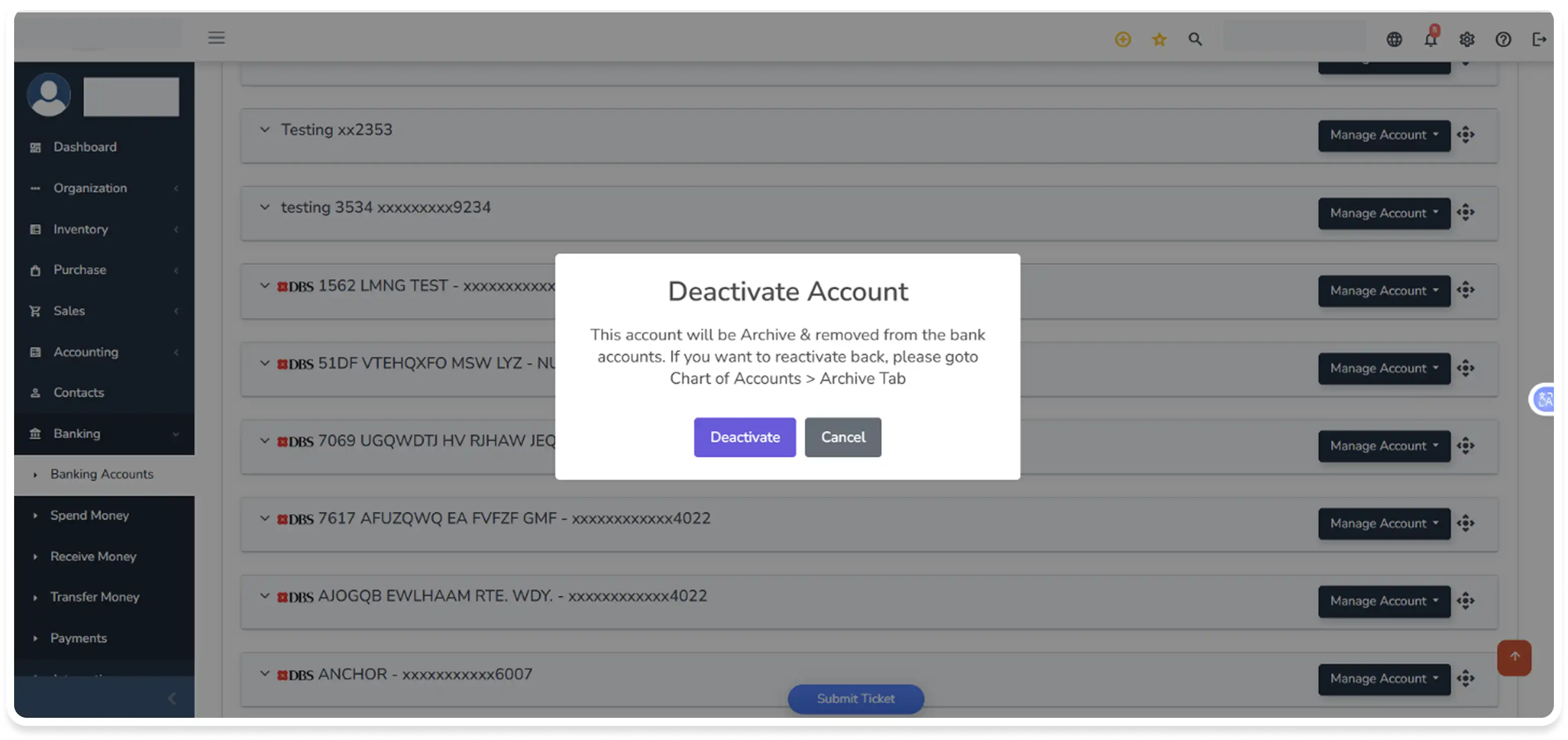
Step 2
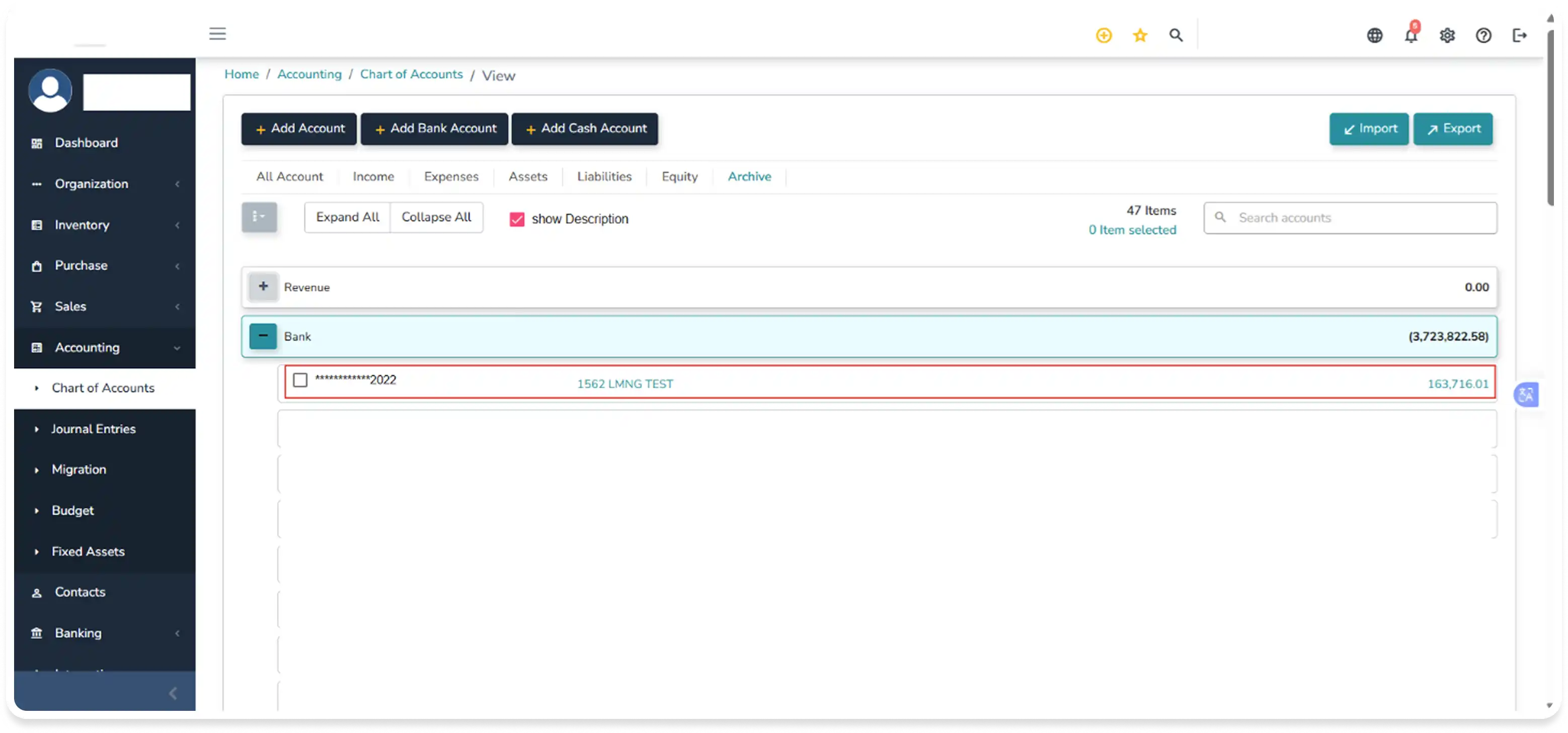
Upon deactivation, the account is moved to the ‘Archive’ tab.
Note: The data feed will be made as inactive without disrupting the account's connection with the bank (delinking) in this state.
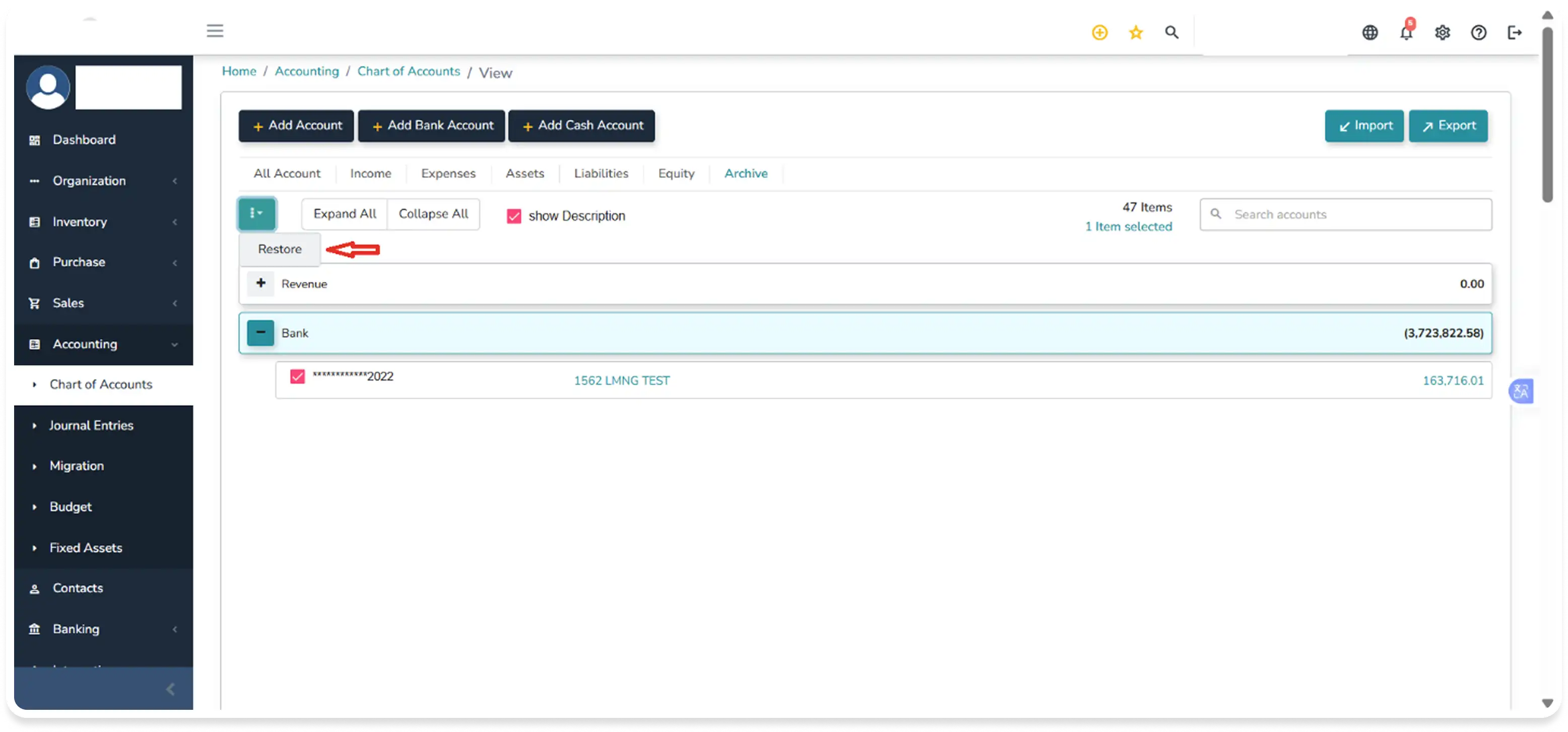
Step 3
Users can Restore the account from the Archive at any time to resume full management.
Delete a DBS bank Account
Step 1
Navigate to Banking > Banking Accounts > Manage Account > Delete Account.
Account Deletion Rules:
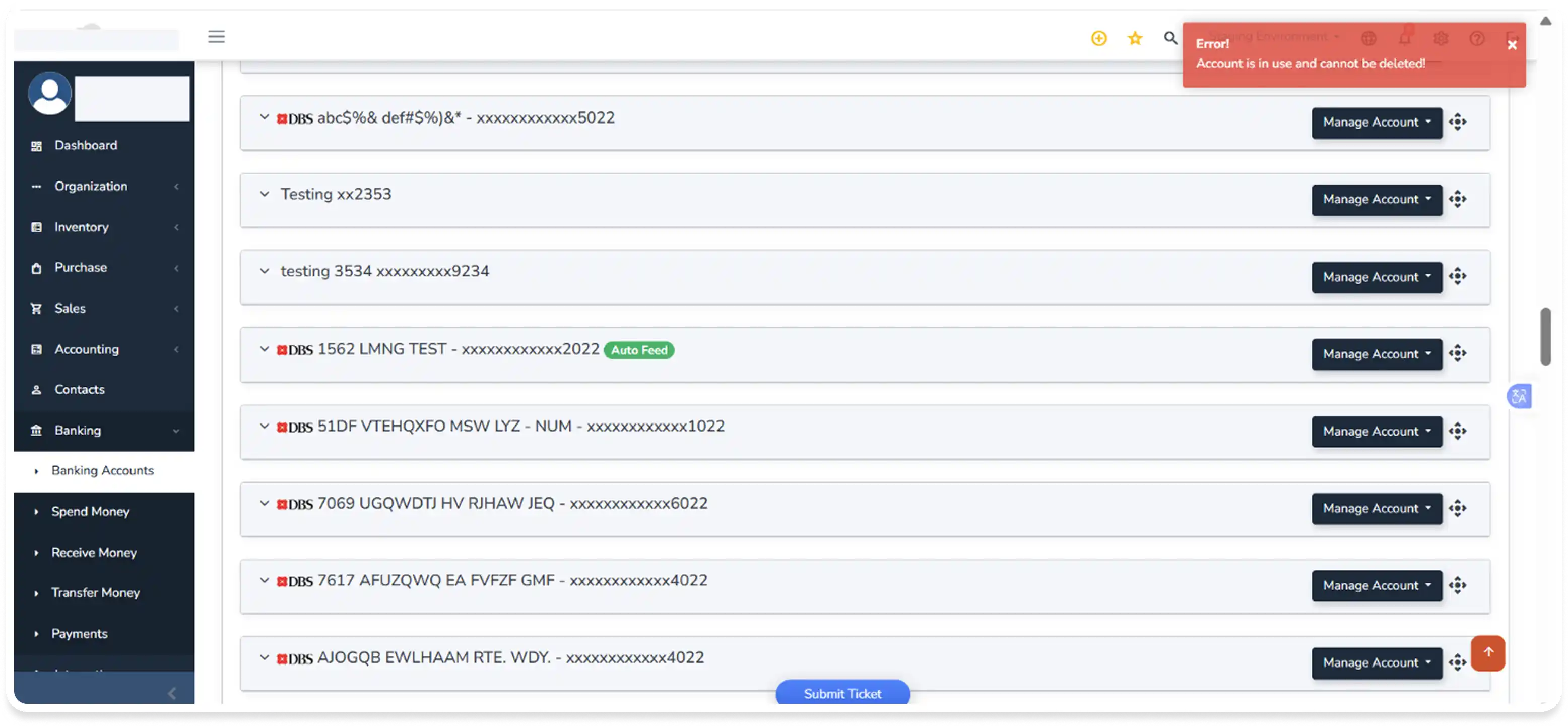
DBS bank account that has already been used cannot be deleted.
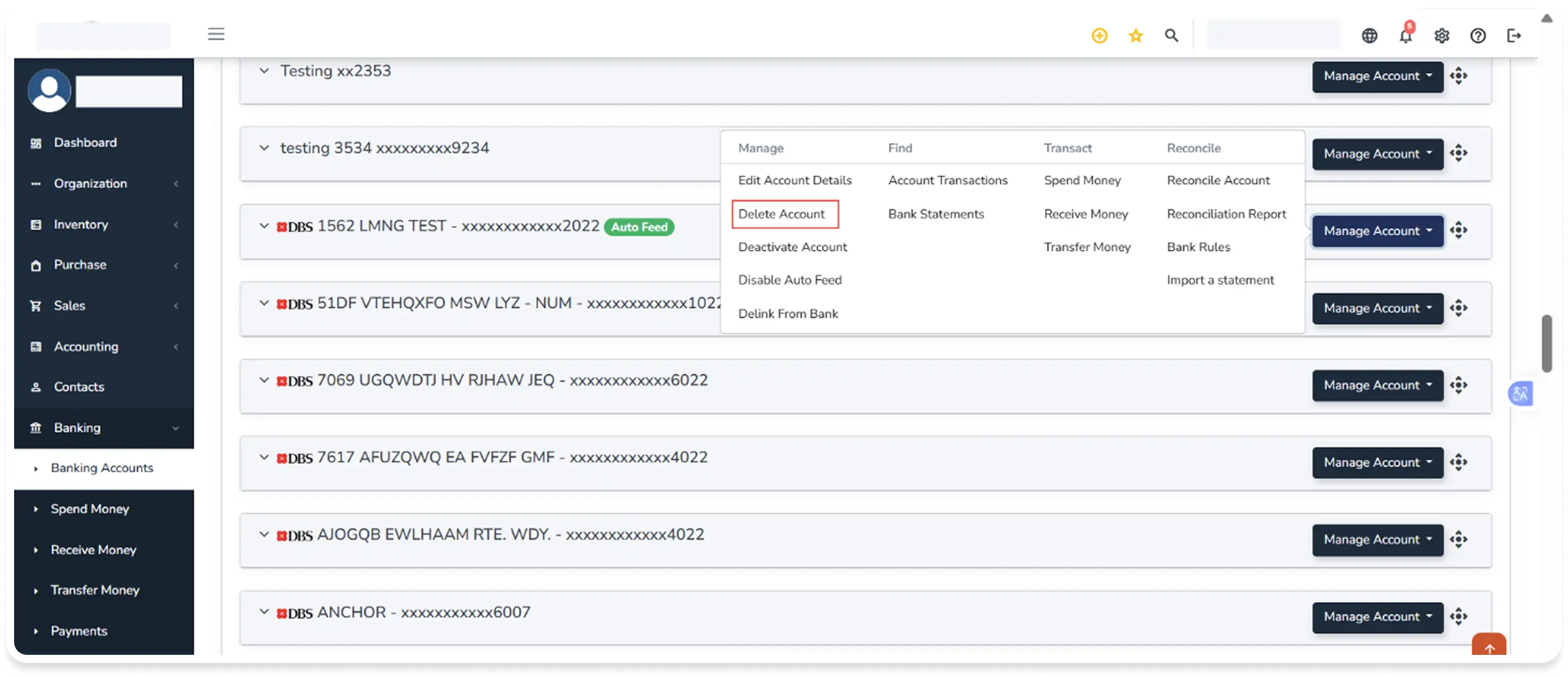
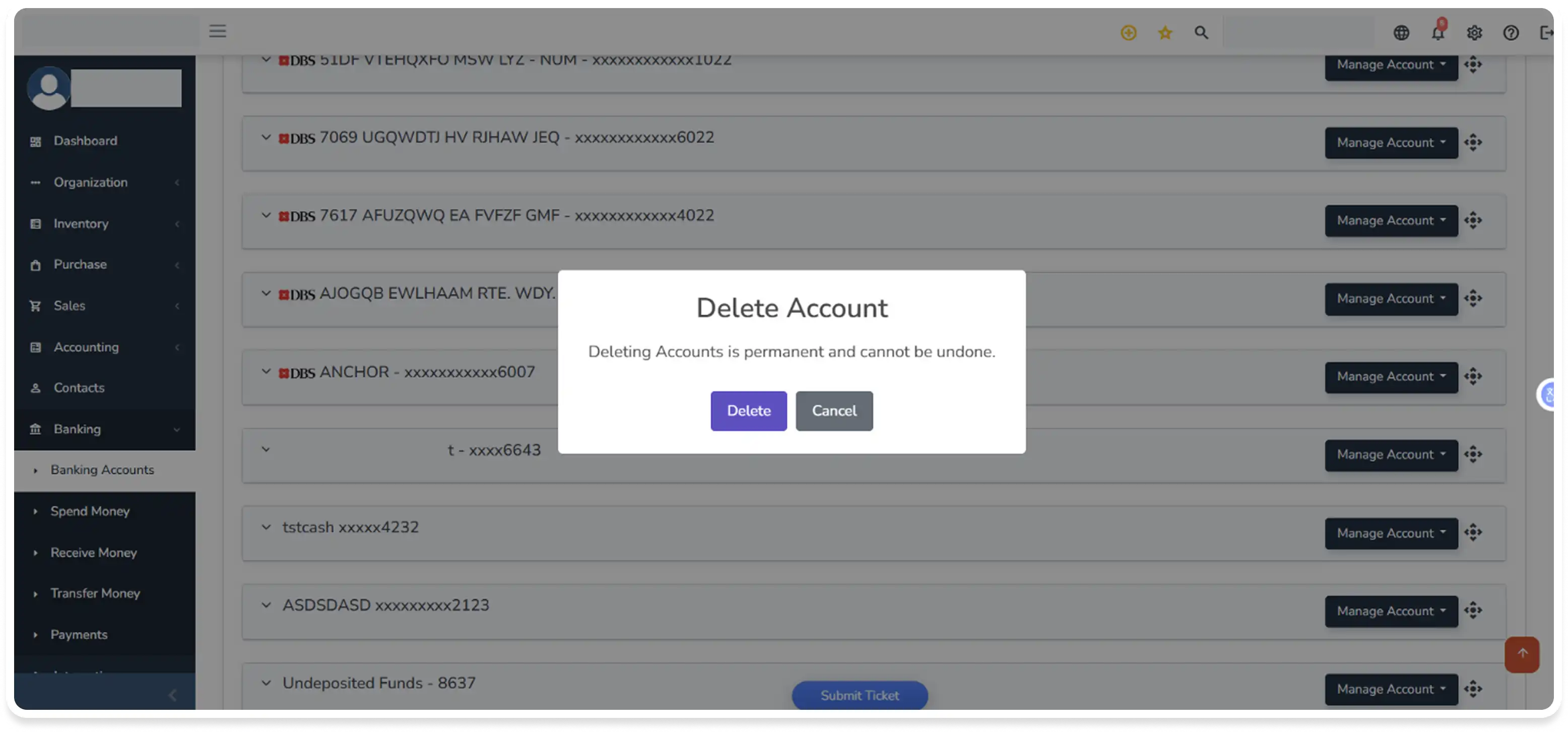
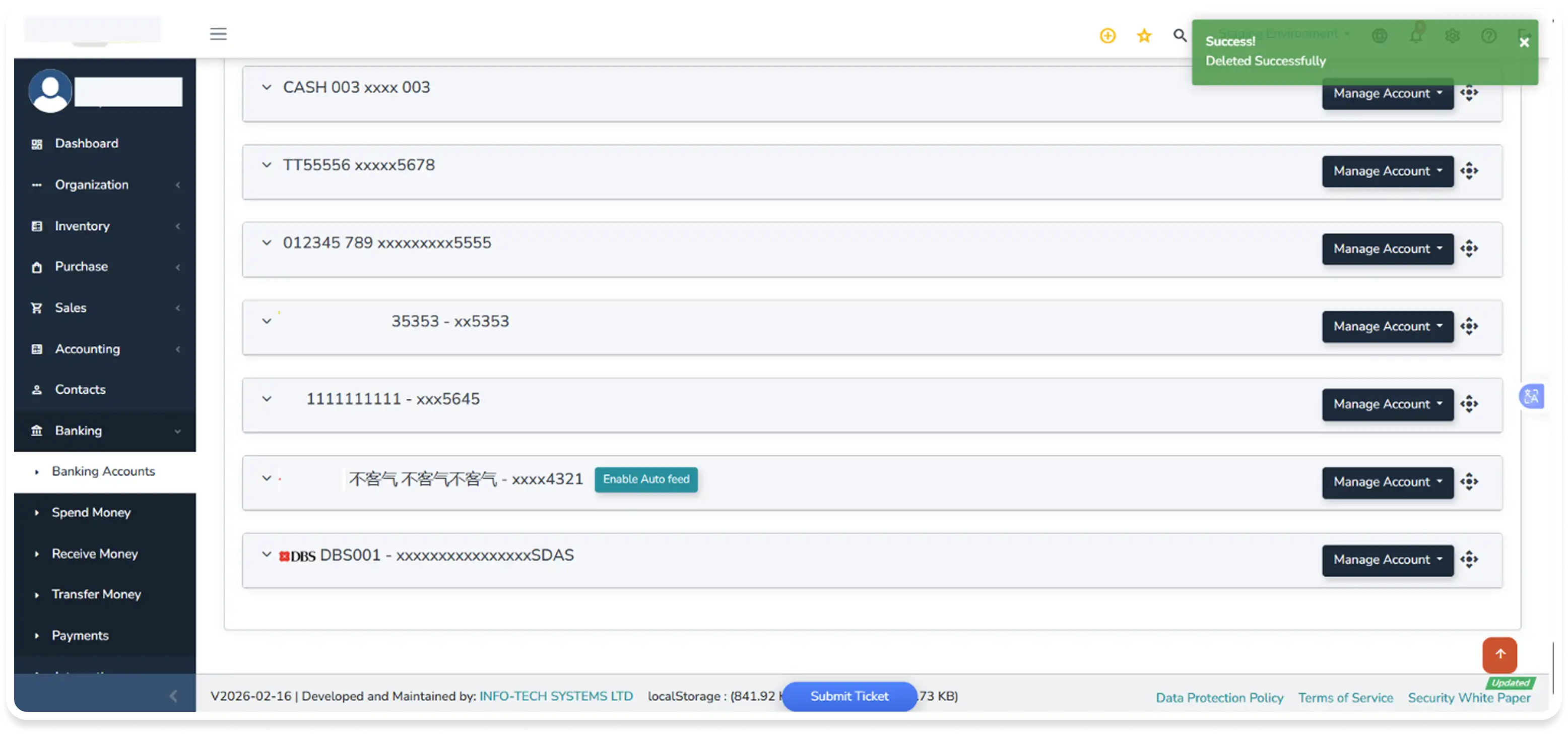
Accounts without Statements: These accounts will be deleted immediately when there are no statement records and the account not used in any transactions.
Accounts with Statements: To prevent data loss, the system will block the deletion. A validation message will appear, requiring you to manage or archive the existing statements before the account can be removed.
NOTE: Deleting an account with Auto Feed enabled will result in the account being delinked, along with all related effects.
Frequently Asked Questions (FAQ)
Who can set up this integration?
Any user with valid credentials for the DBS bank account can initiate the link.
When will my transactions appear in the system?
Once the "Auto feed" is enabled, transactions will automatically sync every morning between 11AM – 1.59PM SGT for the previous day's activity.
Can I link more than one DBS account?
Yes, you can select and link as many listed during the setup process. Already linked accounts will be displayed under the "Current linked accounts" section if you revisit may bank setup page.
What happens if I deactivate my bank account instead of deleting it?
Deactivating moves the account to the Archive tab. The data feed will be made as inactive without disrupting the account's connection with the bank (delinking) in this state. You can restore the account at any time and activate the ‘Auto feed’ anytime without authentication.
Why is the system preventing me from deleting my DBS account?
For security and data integrity, the system will block the deletion of any account that has existing bank statements attached to it. You must first manage or archive those statements before the account can be fully removed.
Does "Delinking" an account delete my history?
No. Delinking stops the "Auto Feed" service and disconnects all the accounts imported and linked and prevents new transactions from being fetched, but all historical data already imported will remain in the portal.
My authentication failed during the login process. What should I do?
If authentication fails at any stage (Username, Password, or OTP), the system will automatically redirect you back to the Info-Tech portal. Ensure your DBS credentials are correct and try again.
Effortlessly manage your business with Info-Tech.
Experience how Info-Tech can transform your HR & payroll processes — faster, smarter, and more efficiently. Backed by enterprise-grade security, seamless integration, and powerful automation to help your business thrive.
THE ONLY SGX-LISTED HRMS

FEATURED ON